 AI and knowledge
Local and cloud language models, document search, Data Nexus knowledge maps, Skills templates, and Task-driven HTML decks and PDF output.
Knowledge and agent workflows →Connect AI, knowledge, automation, media, and 3D creation in one desktop workbench. Build a graph, inspect the results, and turn the process into a workflow you can reuse.
Run the Windows installer to download Qubit Field, install dependencies, create the app environment, and add the desktop shortcut.
Download Qubit Field InstallerOpen the repository for source access, issue tracking, release notes, and partner evaluation.
github.com/QuantalityFX/QubitMCPContinue below for setup, workflows, viewport controls, node coverage, pipelines, and troubleshooting.
Read the manualOne graph. Many disciplines.
Qubit Field brings tools and their outputs into a shared workspace. Research a topic, prepare a presentation, automate an application, or build an animated scene using the same graph editor. QubitMCP is the application's source repository.
AI and knowledgeLocal and cloud language models, document search, Data Nexus knowledge maps, Skills templates, and Task-driven HTML decks and PDF output.
Knowledge and agent workflows → Automation and planning
Python, Mediator agents, Qubit Deck, keyboard and serial/Pico controls, notes, Gantt schedules, and repeatable batch rendering.
Utility nodes → Motion and characters
Text-to-motion, video mocap, BVH collections, rig cleanup, retargeting, joint constraints, and transitions into animation.
Motion guide → Patterns and cloth
Draft and sew reusable panels, arrange them around characters, and simulate garments with pins, collisions, timeline playback, and saved states.
Pattern and cloth guide → 3D and effects
Scene assembly, modeling selections, materials, textures, grooming, skinned proxies, Gaussian splats, lighting, and viewport animation.
Scene and geometry nodes → Media and delivery
Audio capture and translation, speech and video generation, image and clip review, rendered sequences, post effects, and MP4 or asset export.
Media nodes →Start with an outcome, then explore the nodes that connect it.
 Generate, edit, and compare images
Set up Qwen Image 2.1, generate or edit PNGs, and compare variations in Image Collection with a pinned reference.
Follow the image workflow → Build a knowledge workflow
Index documents, connect model and agent tools, organize facts, and prepare a reviewed deck.
AI and planning recipes → Create and simulate a garmentDraft a pattern, pair seams, place the panels, add a collider, and save the simulation.
Follow the garment workflow → Generate, retarget, and render motion
Create a take, review a collection, prepare the character rig, and render a batch.
Follow the motion workflow →Inside the workbench
Select an image to open it at full size.
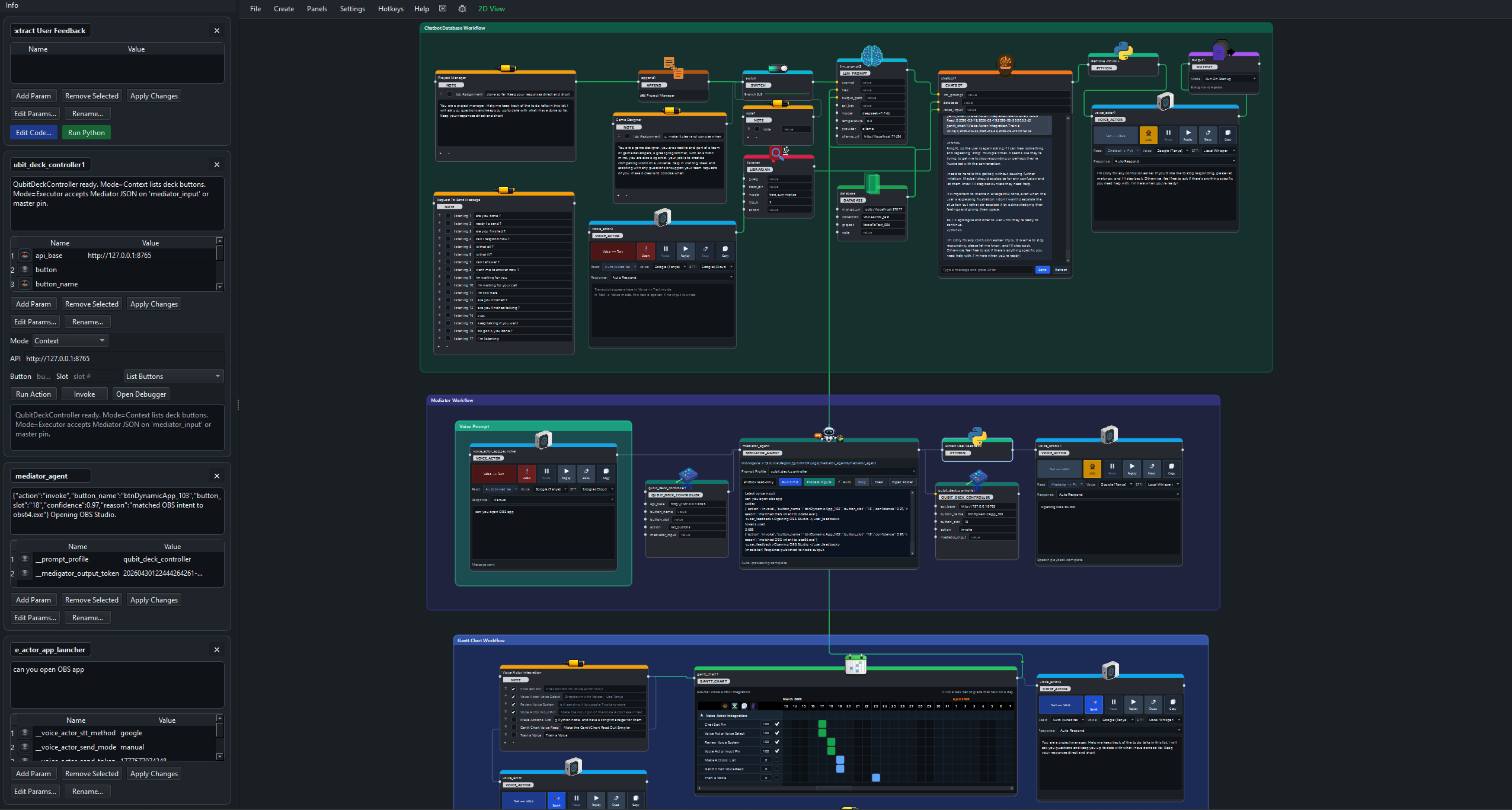
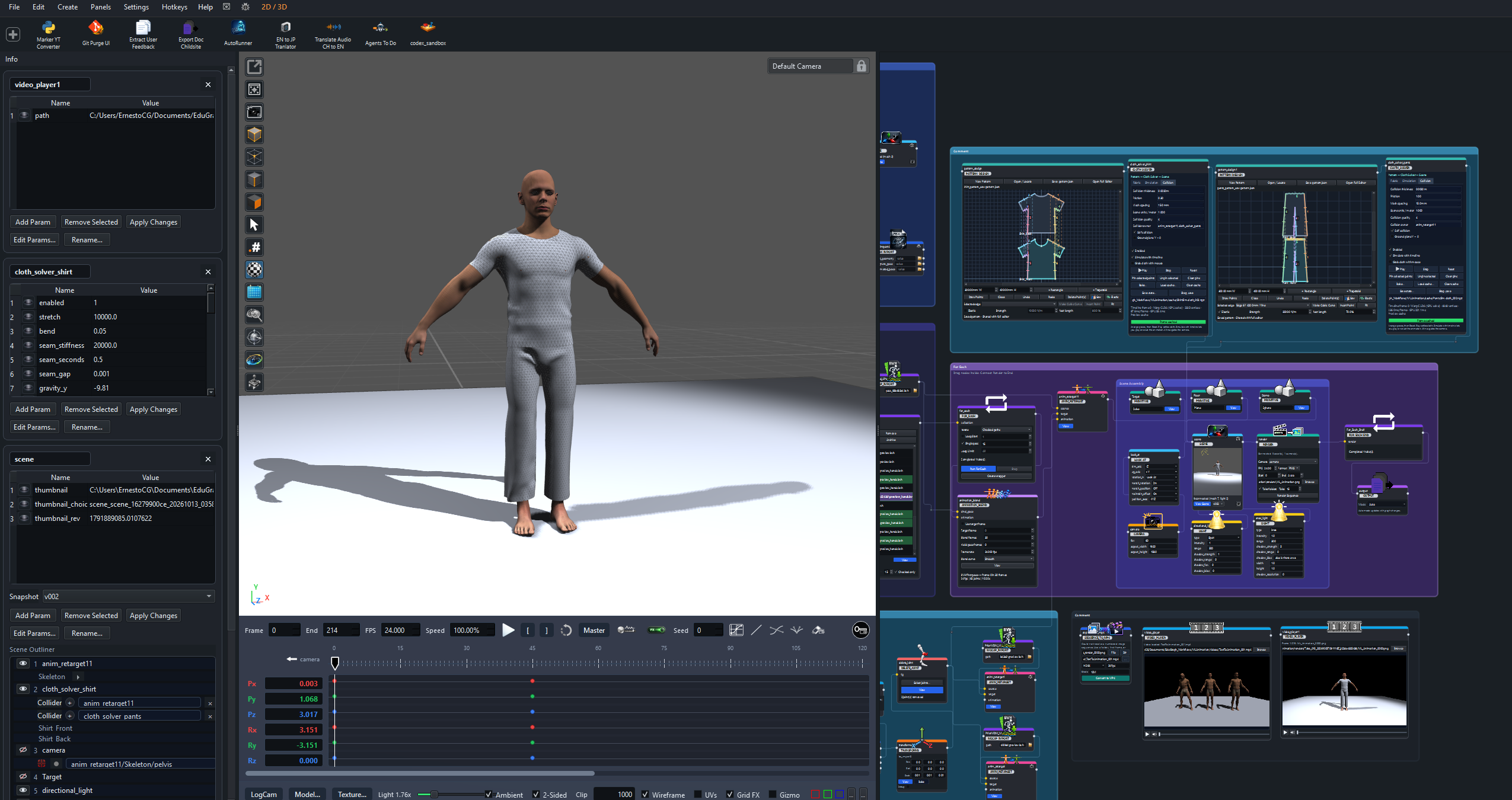
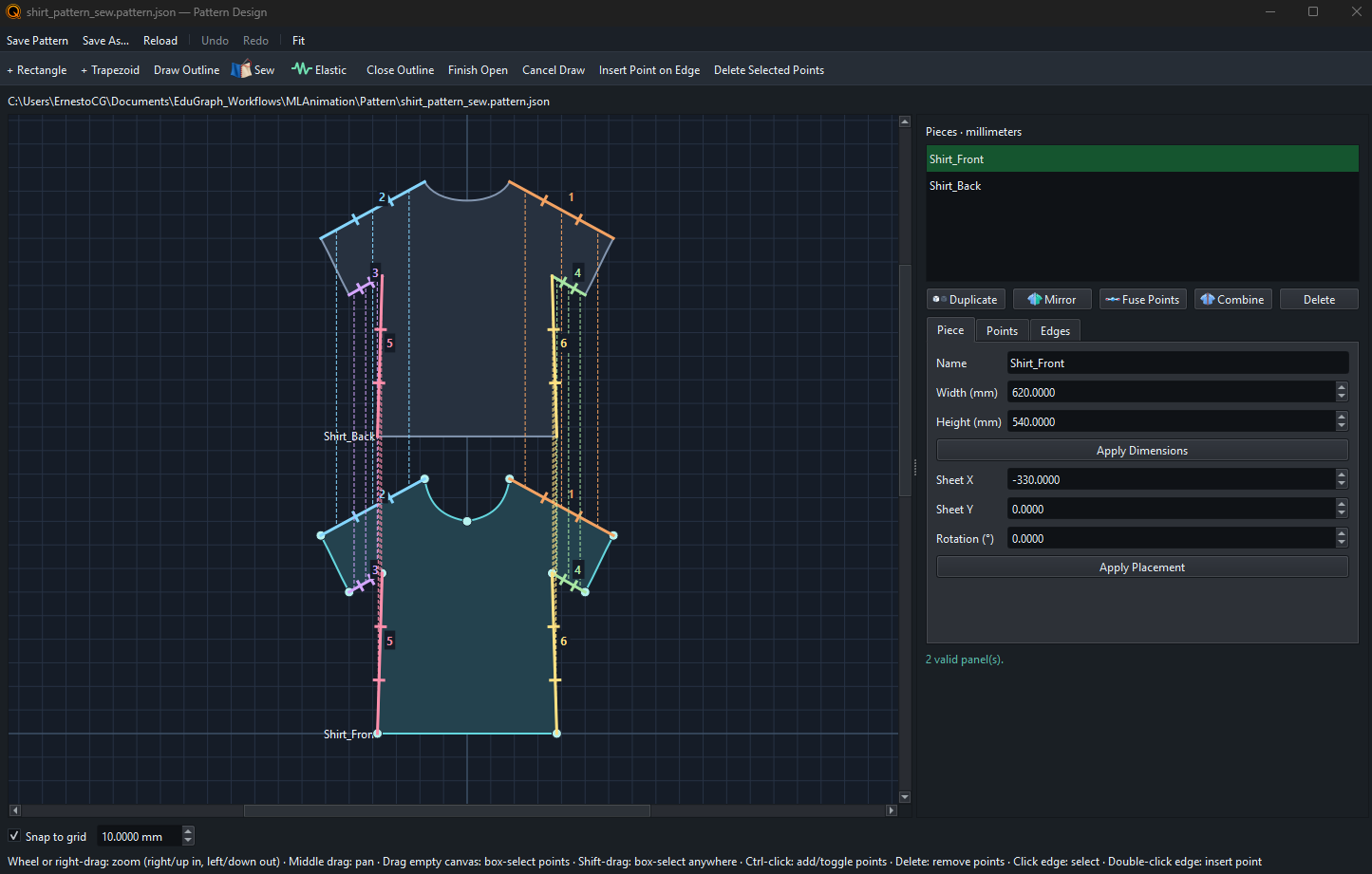
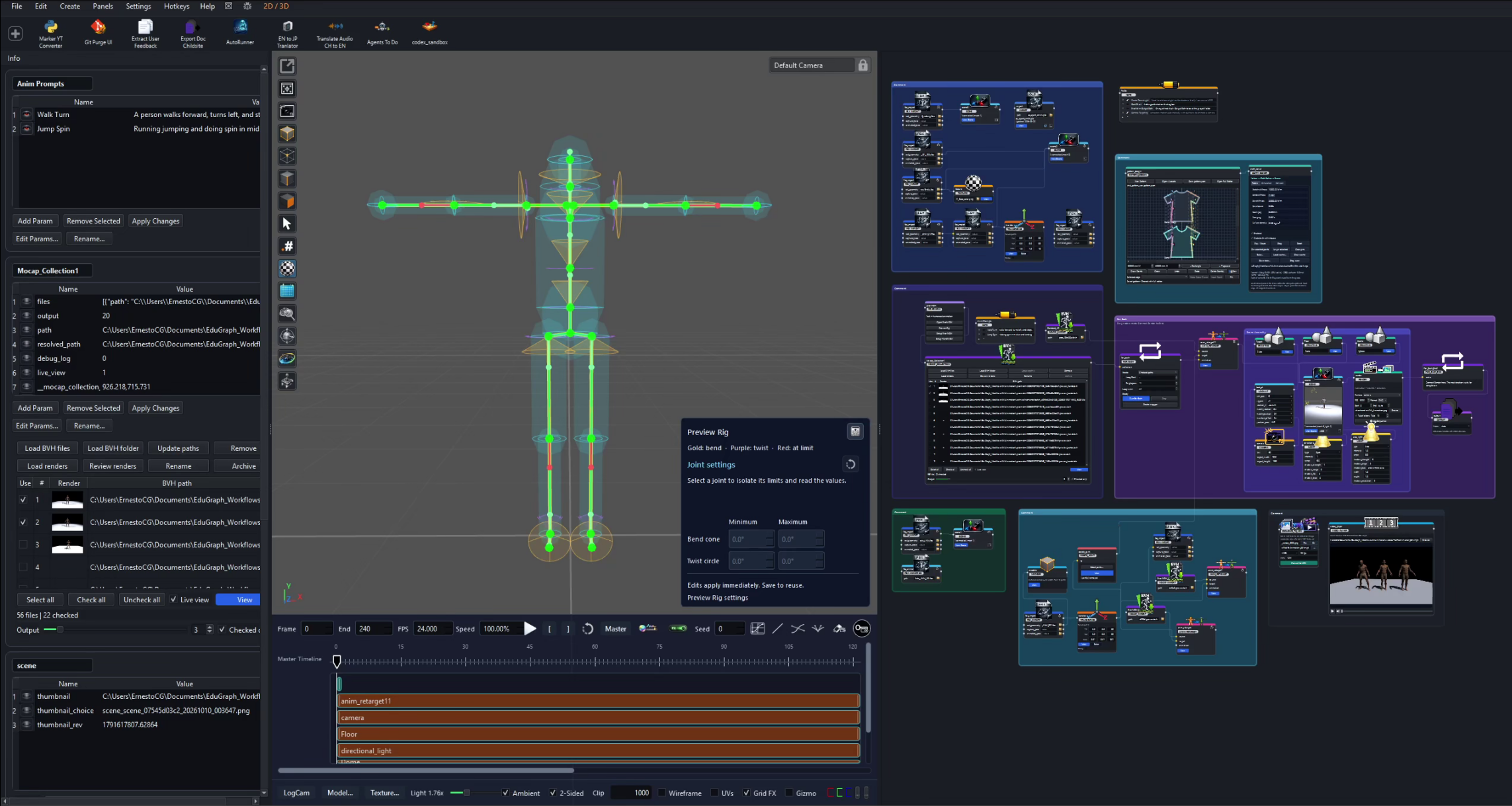
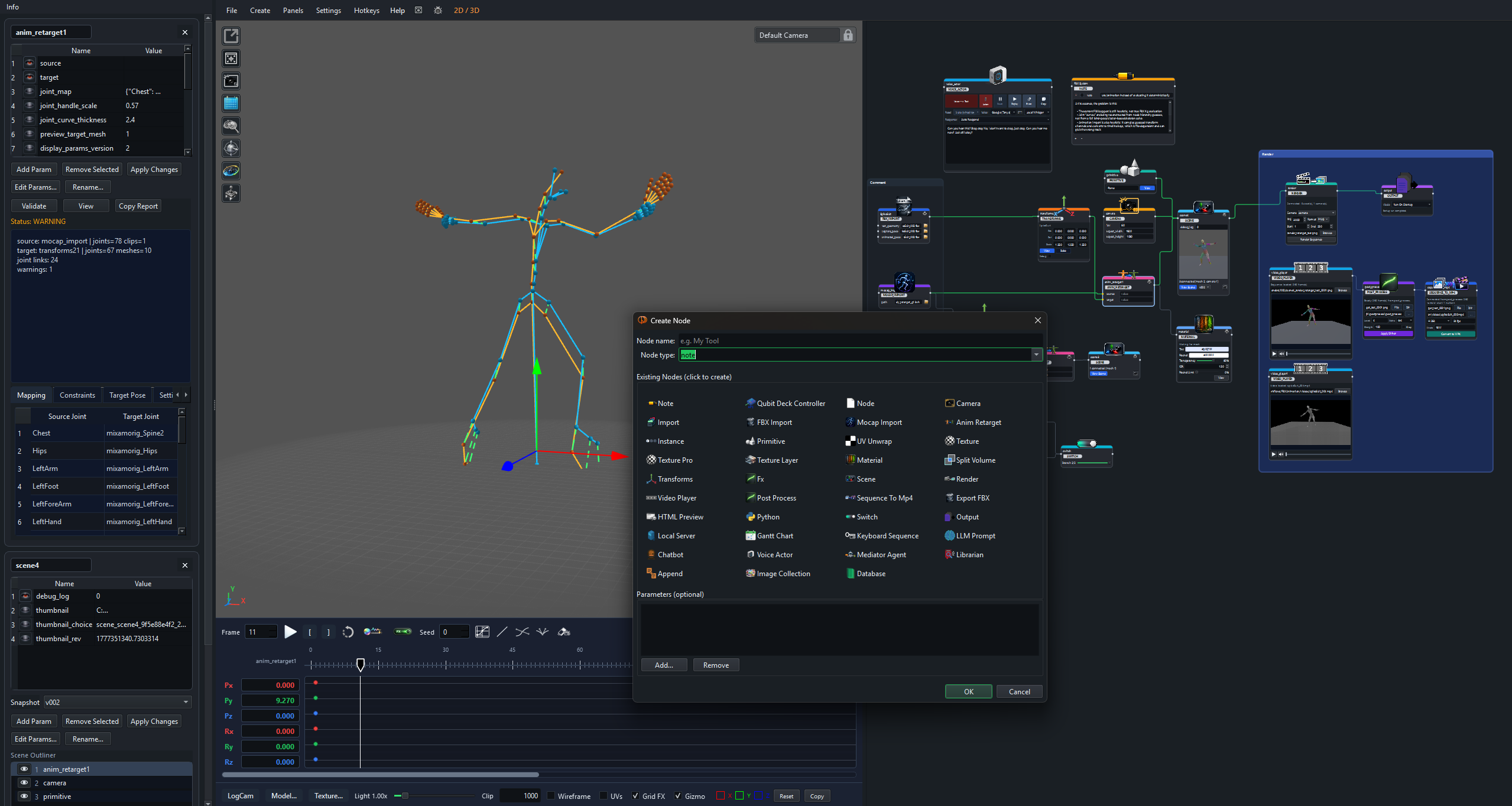
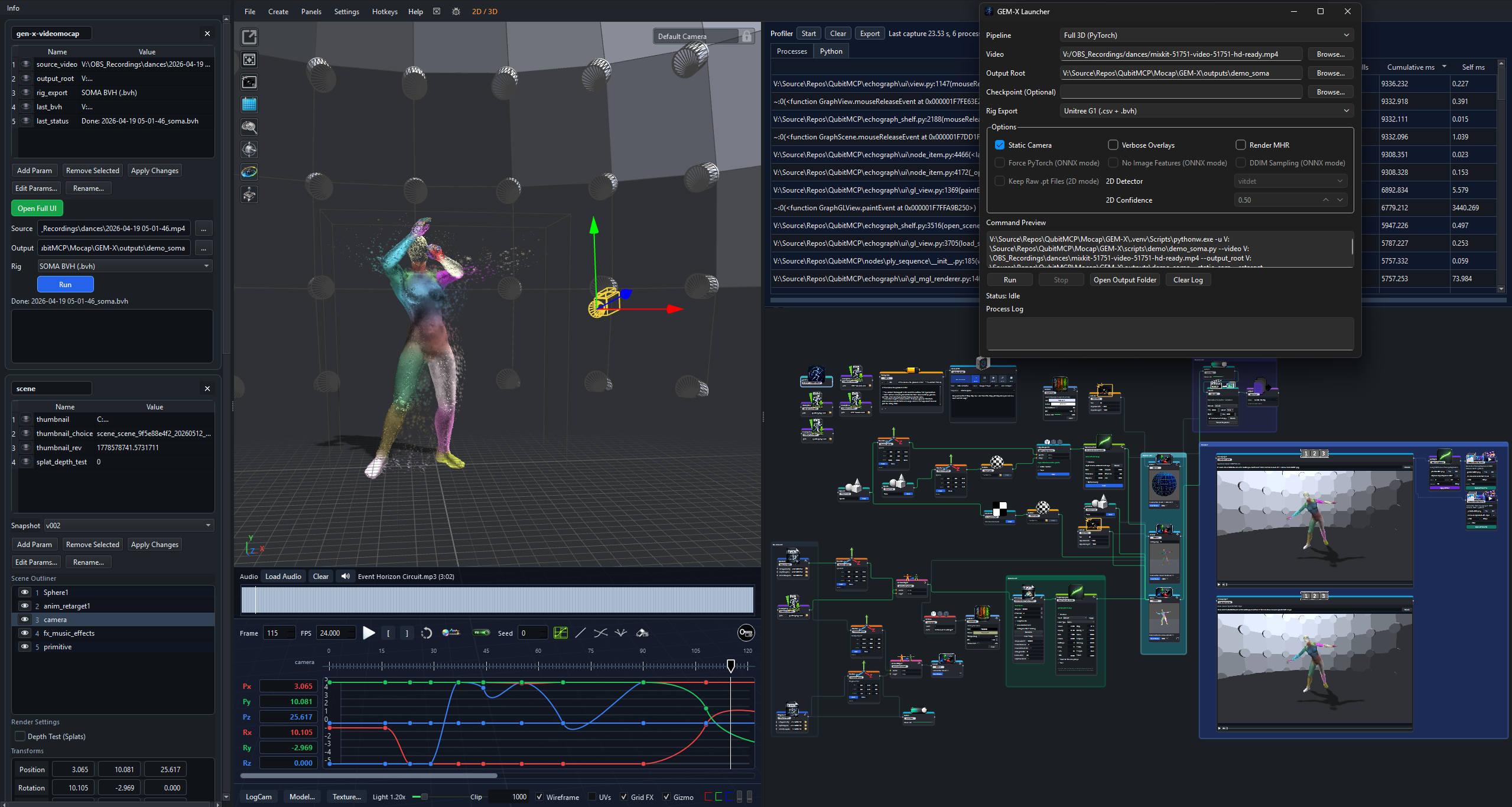
Documentation refreshed · 17 October 2026
Qwen Image 2.1Local text-to-image and image editing with prompts, references, presets, seeds, transparency requests, output previews, and job recovery. Choose the existing ComfyUI backend or the separate native Diffusers BF16 runtime; native GPU quality validation remains in progress.
Set up and generate images → Image Collection review and comparison
Open original-resolution images, play a slideshow, and navigate with clicks, swipes, arrow keys, the wheel, or mouse side buttons. Pin a reference for back-and-forth comparison. Resize collections with packed rows and sharper previews while retaining aspect-based single-image sizing and collection dragging.
Browse and compare variations → Pattern Design + Cloth SolverEmbedded and full-size pattern editing, linked mirrors, sewing and elastic edges, 3D placement, CPU/CUDA cloth, animated colliders, self collision, pins, baking, and resumable states.
Draft, sew, and simulate →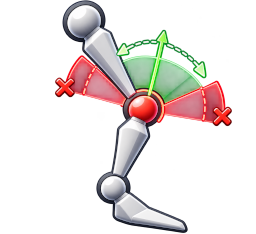 Rig Limiter
Repair existing PriorMDM/HumanML clips with joint limits, tapered body and finger capsules, and optional IK correction. Preview the result or export corrected BVHs for one take or a checked collection without replacing the sources.
Repair and export motion → PriorMDM + rig constraintsGenerate motion from text and add optional HandMDM gestures. Preview Rig now includes finger bend/spread limits, independently sized capsule ends, and a collision preview that stops manual rotations at contact. Hand generation and retargeting remain preview features.
Generate and inspect motion → Cloth toggle + adaptable timeline
Switch timeline simulation for all cloth solvers in the current view beside the FX toggle. Seed sits before Speed, and controls after Loop move to a second row when the viewport narrows. Cloth Solver, Rig Limiter, and Look At have dedicated node icons.
Timeline controls → Mocap Collection + For Each
Import BVH folders, relocate paths, review assigned renders, rename or archive takes, and run collection or parameter batches with paired loop nodes.
Organize and render takes → Animation Blend + rig cleanup
Blend a bind pose into a chosen animation frame with hold time and easing. Delete Joint creates a derived skeleton for cleanup; Look At supports object and skeleton-joint targets.
Prepare animation for a scene → Continuous audio workflows
Audio Capture adds continuous streaming, buffered speech recognition, exclusion of Qubit Field playback, and Test & Listen monitoring alongside source and phrase controls.
Audio Capture reference → Viewport and scene editingUpdated area lights, camera handoff, gizmo visibility, multi-joint rotation, rig previews, and point/edge/face selection support scene and character work.
Explore the viewport → Data Nexus Sales Prep Loopskills, data_nexus, mediator_agent, and task now support a guided Sales Agent preparation workflow.task.mediator connected, Sales Agent AI semantically reviews the newest points, open questions, and slide readiness.answers_question instead of asking again.prep_question points only when needed, updates changed questions, and removes stale Task-owned questions.source_point_ids metadata and can be shown or hidden with short Needs? and Refine? toggles. Task to HTML Deck Output
task owns the Sales Agent step loop: readiness, Mediator AI review, question writing, draft generation, manual status, approve, and dismiss state.Skills/generated_decks/.slide points in a Slides folder.next_slide and connected back to their supporting Data Nexus points with uses_source.index.html, styles.css, and manifest.json.html_preview.path inputs refresh to the generated index.html after draft generation. Skills Library Review
skills scans human templates, agent templates, task guides, and agent guides from the local Skills/ library. Voice Actor Send Modes
voice_actor now supports Auto Respond, Ask First, and Manual response modes per node. Mediator Agent Integration
mediator_agent replaces the older legacy node kind while preserving aliases for existing workflows.llm_prompt for DeepSeek/Ollama conversation.<user_feedback>...</user_feedback> text for spoken status updates. Chatbot Tool Handoff
chatbot now has a mediator_input pin for agent profiles and controlled tool requests.voice_actor connected to Chatbot owns spoken chat output; Mediator stays silent on Chatbot-origin execution results.codex_sandbox is available as a future execution-policy node for Mediator sandbox settings.qubit_deck_controller can list deck context or execute button actions from structured Mediator JSON.mediator_input; older medigator_input workflows still load. Mocap Retargeting Systemfbx_import, mocap_import, and anim_retarget support a source/target retargeting workflow. Render, Post Process, and MP4 Export
post_process applies image-sequence effects such as ordered dithering to render or video frame sequences.sequence_to_mp4 converts image sequences to MP4 through ffmpeg with codec, FPS, and bitrate controls.video_player and render can be used with these nodes for review and delivery pipelines. Keyboard Auto Runner
keyboard_sequence builds timed keyboard action sequences from the graph. Gantt Multi-Note Groupsnote sources at once.append node input and preserve append order as group order. Gantt Copy/Paste Scheduling
gantt_chart/transfer_logs. Gen-X Video Mocap
genx_video_mocap runs the GEM-X/GEN-X video mocap pipeline from a video file.mocap_import node from the generated BVH. Modeling and Instancing Helpers
modeler adds an outliner for object, point, edge, and face selection groups.curve generates line, circle, and spiral scene assets.copy_to_points instances copy geometry onto point inputs with optional material or texture propagation.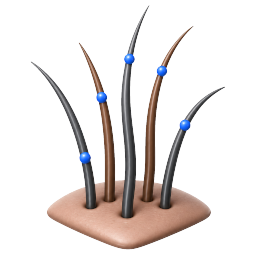 Grooming Pipeline
mask paints mesh masks used to seed groom_guides.groom_deform, groom_guide_pose, and groom_guide_sim bind, pose, and simulate guide curves.groom_guide_tube converts guide curves into tube geometry with radius, caps, smoothing, and profile controls. Skinned Mesh and Splat Proxies
skinned_volume_mesh builds voxel-derived collision meshes from rigged FBX or retargeted character data.skinned_splat_proxy creates skinned splat render proxies from FBX, retarget, or guide tube sources. Image-GS Splat Node
image_gs_splat converts a local image path or HTTP image URL into a viewport-ready Gaussian splat PLY. Serial and Pico HID Control
serial_com stores COM port, baud rate, and timeout settings for downstream automation.pyserial when the runtime dependency is missing. Audio Capture Sourcesaudio_capture captures output-device, input-device, or application audio..\setup.bat from a source checkout..\Run_QubitMCP.bat or run echograph_app.py from the project venv.Use Windows 10/11 (64-bit). Run these commands from the folder where you cloned the repository. Setup can provision its own Python 3.10 runtime and prepares the application environments.
setup.bat.venv for the app.nodes\librarian\.venv for librarian service dependencies.requirements.txt and nodes\librarian\requirements.txt.pip, setuptools, wheel).sequence_to_mp4.voice_actor, including local Whisper and TTS support when available.audio_capture.keyboard_sequence sanity check so Keyboard Auto Runner can load its runtime.tools\codex.ps1, Node.js, and npx.%QUBITMCP_HOME%\third_party\image-gs for image-to-splat workflows, including the Image-GS Python dependencies, fused-ssim, and bundled gsplat package.Mocap\setup.batUse the Mocap setup when genx_video_mocap needs the GEM-X runtime and its dedicated environment.
nodes\image_gs\setup_image_gs.batThe main setup calls this automatically. It clones https://github.com/NYU-ICL/image-gs.git into the writable app home, creates a separate Image-GS environment, and installs the runtime used by image_gs_splat; set QUBITMCP_SKIP_IMAGE_GS=1 before setup to skip it.
PriorMDM and HandMDM have setup controls in the PriorMDM node. Local video models have their own setup controls and GPU requirements; cloud nodes need provider credentials. Cloth offers auto, cpu, and cuda backends. See the motion guide and cloth guide for practical setup.
Create an FBX Import node and choose Install FBX Support when prompted. This optional runtime is used for full FBX compatibility.
To check an existing installation from the repository root:
powershell -NoProfile -ExecutionPolicy Bypass -File .\check_fbx_sdk.ps1To install from a local SDK folder containing fbx-*.whl or fbx*.pyd, plus FbxCommon.py and any required runtime DLL:
powershell -NoProfile -ExecutionPolicy Bypass -File .\install_fbx_sdk.ps1 -SourceDir "C:\path\to\fbx_runtime"Run_QubitMCP.bator
.\.venv\Scripts\python.exe .\echograph_app.py.\.venv\Scripts\Activate.ps1Activation is optional because scripts call the venv python directly.
shelf_tools.json.hotkeys.json. Viewport Left Panel
GizmoZoom_On_Icon.png / GizmoZoom_Off_Icon.png for Infinite vs Legacy zoom mode. Frame Selection
 SnapshotGizmo Space World/LocalObject Select
 Point Select
 Edge Select
 Face Select
 Box Select + Face Policy Menu
 Point Numbers
 Grid Toggle
 Zoom Mode Toggle
 Translate / Rotate / Scale Tools
 Camera Orbit Lock/Free
 Fly Mode Toggle
 Stats OverlayCopy Stats
 Animation Timeline
Px, Py, Pz, Rx, Ry, and Rz.ply_sequence for frame-by-frame PLY playback workflows that sync well with timeline scrubbing.mocap_import, fbx_import, and anim_retarget for skeleton/animation retargeting workflows before scene preview or render. Play/PauseSet Key
 Delete Selected Keys
 Curves Mode
 Fit Curve Values
 Detach / Dock Timeline
 Master Timeline
 Straight Handles
 Tied Handles
 Untied Handles
 Material Live Mode
 FX Instances Toggle
 Cloth Simulation On
 Cloth Simulation Off
Switch to Curves Mode to edit position and rotation channels. Select Px, Py, Pz, Rx, Ry, or Rz to focus on the channels you need. The first ruler label shows the visible starting frame, including starts between the regular numbered ticks.
| Control | Action |
|---|---|
| Fit Curve Values | Fits the keys and handles on visible curves vertically without changing the visible time range. |
| F over the graph | Frames selected keys in time and value. With no keys selected, frames all keys on visible curves, including keys outside the current view. |
| Alt + middle mouse drag | Grabs and pans the graph in time and value. This gesture stays in the timeline and does not move the 3D camera. |
| Right mouse drag | Drag down to expand the value range or up to contract it. Drag right to narrow the time range or left to widen it. Alt + right mouse drag works too; right-click without dragging opens key actions. |
| Range bars | Move the bottom bar to pan in time, or its ends to change the visible time range. The vertical bar provides the same control over the value range. |
Use Straight Handles for a straight segment, Tied Handles to move both sides as a lever, or Untied Handles to adjust each side independently. Handles can be vertical, stretch beyond the visible value range, and overlap neighboring handles while staying on their own side of the key. IK curve handles are saved with the draft and used during playback and export. See the Animation Correction workflow for IK ranges and joint edits.
 Audio Panel
wav, mp3, ogg, flac, aac, and m4a. Load Audio
 Clear AudioSound On
 Sound Off
 Profiler Panel
logs\Profiler. Panel Layout Presetsapp_settings.json.settings.panel_layout and restore it on load.<workflow folder>\projects\, for example
<scene>_timeline.json,
<scene>_timeline_range.json, and
<scene>_audio.json.
All bindings are editable in the Hotkeys dialog and persisted to hotkeys.json.
| Action | Key |
|---|---|
| Save | Ctrl+S |
| Undo / Redo | Ctrl+Z / Ctrl+Y |
| Copy / Paste Node | Ctrl+C / Ctrl+V |
| Delete Node | Del |
| Create Node Menu | Tab |
| Comment Group | C |
| Open Big Editor | Ctrl+B |
| View Selected Node (Import/Scene) | V |
| Frame View | F |
| Reset 3D View | Shift+R |
| Gizmo Translate / Rotate / Scale | T / R / E |
| Wireframe Toggle | H |
| Grid Toggle | G |
| Timeline Play / Pause (over the timeline) | Space+P |
| Timeline Set Key | K |
| Timeline Graph Pan | Alt+MiddleClick drag |
| Timeline Graph Scale Ranges | RightClick drag (also with Alt) |
| Timeline Graph Frame Selected / All Visible-Curve Keys | F |
| Timeline Join IK Ranges | Ctrl+J |
| View Mode 2D / Split / 3D | 1 / 2 / 3 |
| Add Wire Pin | Ctrl+LeftClick |
| Remove Wire | Alt+LeftClick |
The catalog includes the current node picker and additional registered tools, with connection notes for the newest workflows. Search by name or capability, filter by category, or share a direct link to a node.
Notes, scheduling, Python, switches, outputs, and For Each / For Each End.
 for_each: Loop over Mocap Collection outputs, checked BVH paths, or a numeric parameter range. The start node passes the active animation downstream.for_each_end: Complete a For Each iteration when its connected Render job finishes.
 note: Note tasks and text content with per-parameter controls.node: Standard general-purpose parameter node.
 append: Ordered input aggregation; can drive Gantt group order.
 switch: Single-branch selection from multiple upstream nodes.gantt_chart: Scheduling board with multi-note grouping, collapse state persistence, and CSV copy/paste transfer.
 python: Run custom scripts in graph context.
 output: Terminal collector for final graph output.
Models, chat, documents, Data Nexus, Skills, and Task.
 local_server: Local server endpoint configuration.
 llm_prompt: OpenAI or Ollama/DeepSeek model settings and response generation for Chatbot workflows.
 chatbot: Conversation workflows with Database history, Voice Actor input, LLM Prompt runtime, and optional mediator_input .
 database: Persistence layer for graph and chat data.data_nexus: Folder-aware knowledge canvas for points, vault files, graph relationships, question and slide point types, review rings, references, and answer-to-question links.skills: Local Skills library browser for human templates, agent templates, task guides, approval state, validation warnings, review diffs, and Sales Agent deck generation.task: Workflow step controller that reads Skills, Data Nexus, and optional Mediator AI; checks readiness, writes questions, generates drafts, refreshes HTML, and indexes slides.librarian: Document indexing, search, summarize, and analysis.
Speech, translation, agents, Qubit Deck, keyboard actions, and serial connections.
voice_actor: Speech-to-text and text-to-speech node with Auto Respond, Ask First, and Manual send modes.audio_capture: Capture output-device, input-device, or application audio with source, backend, sample-rate, threshold, silence, and phrase controls. Continuous streaming supports buffered speech recognition, exclusion of Qubit Field playback, and Test & Listen monitoring.translator: Translate incoming text or voice transcripts with language, style, and automatic translation controls. openai_realtime_translate: Translate live microphone speech with spoken output and a live translation transcript.minimax_tts_api: Generate speech audio from text through the MiniMax Speech API.mediator_agent: Agent profile layer and technical executor for direct voice workflows, Chatbot-origin tool handoff, and Sales Agent AI task review.codex_sandbox: Future Mediator execution-policy node for Codex sandbox, approval, working directory, network, and output capture settings.keyboard_sequence: Keyboard Auto Runner for timed key/action sequences with lead-in, hold time, delays, and injection mode.serial_com: Stores COM port, baud, and timeout settings for serial/Pico HID automation paths.
Imports, PriorMDM, collections, retargeting, Animation Blend, constraints, scenes, and exports.
look_at: Aim or constrain a scene object to another object or a skeleton joint.animation_blend: Build a transition from a character bind pose into a skeletal animation, useful for settling a garment before motion begins. delete_joint: Remove selected joints from a derived FBX or BVH skeleton and preview the result.mocap_collection: Organize BVH takes with an active output, Use checkboxes, Checked only filtering, and live preview. Load individual files or scan a folder recursively.priormdm: Generate a humanoid motion take from text with duration, seed, guidance, and device controls. Preview the reconstructed BVH or add completed takes to a Mocap Collection.import: Load mesh or splat assets.
 fbx_import: Ingest and validate FBX rest geometry, capture pose, and animated pose roles for rigging workflows.fbx_animation: Import an FBX animation clip with skeleton validation and a viewport preview.genx_video_mocap: Run GEN-X/GEM-X video mocap and create downstream BVH import nodes.mocap_import: Import and validate BVH mocap clips with skeleton, frame, and clip summaries.anim_retarget: Connect a mocap/FBX source to a target FBX rig with joint mapping, root controls, pose offsets, preview options, and rig bend/twist constraints. Preview and adjust the rig before exporting or using it as an animated cloth collider.
 camera: Scene camera placement/control node.
 light: Directional, point, spot, and area light setup with intensity, range, and shadow parameters. The node picker also offers directional_light , point_light , spot_light , and area_light presets.
 instance: Create repeated scene instances.copy_to_points: Copy source geometry onto point inputs with instancing and material/texture support.
 primitive: Generate procedural primitive geometry.curve: Create line, circle, or spiral curve scene assets.modeler: Inspect model object names, hide/isolate submeshes, and save object/point/edge/face selection groups.transforms: Apply translate/rotate/scale offsets in-chain.
 ply_sequence: Sequence playback/control for PLY streams and splat frame workflows.image_gs_splat: Download a URL or local image, run Image-GS, preview the generated Gaussian result in the node, and output a viewport-ready PLY splat.scene: Assemble and manage multi-asset scenes.export_fbx: Export scene geometry to FBX.export_fbx_animation: Export validated FBX rigs with skeletons, skinned meshes, animation ranges, FPS, and optional joint-scale curves.
 export_obj: Export to OBJ/MTL.
Pattern Design, Cloth Solver, UVs, textures, masks, guides, proxies, and splat effects.
cloth_solver: Simulate saved pattern panels with CPU or CUDA, sewing, elastic edges, stretch and bend controls, collisions, self collision, gravity, and pins.pattern_design: Draft garment panels in an embedded canvas or Open Full Editor. Edit millimeter dimensions, points, cubic curves, linked mirrors, combined outlines, sewing pairs, and elastic edges. uv_unwrap: UV workflow stage.normals: Smooth mesh normals and cache an updated OBJ for downstream texture, mask, and scene workflows.
 texture: Base texturing stage.texture_pro: Expanded texture processing controls.
 texture_layer: Layered texture compositing.
 material: Material setup and conversion utilities.
 mask: Paint foreground/background mesh masks with brush, falloff, invert, clear, and preview controls.split_volume / volume_selector: Filter/split geometry by volume.
 fx: Post-process and trail-style pipeline stage.fx_splat_physics: Add motion lag, gravity, noise, and fading trails to animated skinned splats.fx_splat_fx: Apply audio-driven glow and traveling wave effects to Gaussian splats.colorize: Recolor splats with a three-color ramp driven by their shape or height.fx_music_effects: Drive mesh displacement from an audio track, including animated character geometry.
 wire: Wire and curve-based geometry path workflows.groom_guides: Generate guide curves from a painted mask and source mesh.groom_deform: Bind guide curves to FBX/retarget rigs and optionally hide the deformer geometry.groom_guide_pose: Pose guide curves from animation frames with XPBD-style strand settings and optional GPU support.groom_guide_sim: Simulate guides with frame, FPS, substep, stretch, bend, gravity, wind, and collider controls.groom_guide_tube: Convert guide curves into tube geometry with radius ramp, subdivisions, caps, smoothing, and source-guide display.skinned_volume_mesh: Generate skinned voxel collision meshes from rig contexts for grooming simulation and viewport collision.skinned_splat_proxy: Generate skinned splat proxies from retargeted rigs, FBX imports, or guide tubes.
HTML, images, audio/video generation, render sequences, post effects, and MP4 delivery.
 html_preview: In-node HTML rendering with a path input and PDF export for generated decks and other upstream HTML artifacts.qwen_image: Generate and edit local images with Qwen Image 2.1, reference inputs, and selectable backends.image_collection: Arrange image sets, resize packed previews, and review originals with slideshow and pinned comparison controls.
 video_player: Review original media in-node or in a large player, mark inclusive ranges with [ ], clear with [X], and toggle playback with Space.youtube_downloader: Download a YouTube video as MP4, extract MP3 audio, and optionally save a Markdown transcript.minimax_h3_video (MiniMax H3 Local Video): Generate through a local H3 runtime using a prompt and optional first/last images. Multi-parameter Note prompts use checked values; single-parameter Notes are automatic.minimax_h3_api_video (MiniMax API Vid): Generate through the cloud API with a prompt, first/last frames, or reference images, with the same Note-selection rule.minimax_h3_reference_video (MiniMax H3 Ref Video): Combine previs video, character/environment Image Collections, optional audio, and a prompt. All connected collections contribute up to nine design images combined; Note prompts use the same selection rule.wan22_video: Run local Wan 2.2 TI2V-5B text-to-video or image-to-video generation and output an MP4.render: Render sequence/export pipeline stage.post_process: Apply image-sequence effects such as ordered dithering and produce an output frame pattern.sequence_to_mp4: Encode an inclusive frame range with FPS, codec, and bitrate controls. Auto boundaries inherit connected Video Player markers or use the full sequence.
Aliases also exist for many node kinds, including scene_assembly, scene_outliner, exportfbx, export fbx animation, video player, bvh_import, retarget, gpt_prompt, copy to points, hair guides, guide_tube, serial_port, and legacy medigator_agent.
Agent workflows cover the Task, Data Nexus, Mediator, Chatbot, and HTML Preview loop used by guided AI roles. This section is placed with the pipeline examples because agent work is one workflow category, not the only workflow type.
voice_actor handles listening and speaking; the Mediator language profile handles translation or reading output.
skills, data_nexus, mediator_agent, task, and optionally html_preview.skills to task.skills, data_nexus to task.data_nexus, and mediator_agent to task.mediator.task.artifact to html_preview.path so generated decks preview automatically.prep_question points. If the graph has not changed and the old questions are still valid, the task reuses them instead of creating duplicates.answers_question.index.html, styles.css, and manifest.json under Skills/generated_decks/. Task also indexes generated slides as green slide points in Data Nexus.
continue the Sales Agent for the pitch deck, then answer the one question she asks.Answer prep_question slide_03_problem_prep_question: Customers lose time because review work is spread across chat, files, and engine tools.answers_question link.answers_question link.source_point_ids metadata and only draw when their toggle is enabled.
next_slide links plus uses_source links to supporting points.
skills to confirm an approved Sales Agent html_deck template and an approved sales pitch deck task guide are available.data_nexus to collect sales facts as normal answer points, such as company profile, problem, workflow outcome, traction, pricing, competition, and team context.skills -> task.skills, data_nexus -> task.data_nexus, and optionally mediator_agent -> task.mediator for LLM review/question writing.answers_question.prep_question points into Data Nexus. The write sync adds genuinely new questions, updates changed questions, and removes stale Task-owned questions.answers_question.index.html, styles.css, and manifest.json; connect task.artifact to html_preview.path for in-app review.
import, fbx_import, primitive, curve, or modeler nodes.normals, uv_unwrap, texture/texture_pro/texture_layer, material, split_volume, transforms, or anim_retarget.instance or copy_to_points when you need repeated assets.camera and light nodes when the scene needs explicit shot and lighting control.scene and review in 3D viewport.export_fbx, export_fbx_animation, or export_obj for DCC handoff.
librarian and set docs path.llm_prompt or chatbot for response generation.database for persistence and append plus output for final aggregation.
llm_prompt for Ollama/DeepSeek or OpenAI, then connect it to chatbot llm_prompt.database to chatbot database so the Chatbot owns conversation history.voice_actor to chatbot voice_input.mediator_agent profile such as assistant_tanya, then connect Mediator to chatbot mediator_input.qubit_deck_controller to the Mediator so Mediator can read deck context and execute approved handoffs.
note nodes with task parameters.append and use append order to control Gantt group order.gantt_chart and assign dates or progress per task row.
voice_actor, set its response mode, and connect its output to mediator_agent voice_input.qubit_deck_controller.qubit_deck_controller mediator_input.python node between Mediator and Voice Actor to extract only <user_feedback> text for speech.qubit_deck_controller in Context mode to list buttons, then Executor mode to invoke or highlight actions.
fbx_import and assign rest geometry, capture pose, and optional animated pose FBX sources.mocap_import and browse to a BVH file, then validate the clip.anim_retarget source.fbx_import into anim_retarget target.export_fbx_animation when you need a rigged FBX animation file instead of a static scene export.
Mocap\setup.bat once for the GEM-X/GEN-X environment.genx_video_mocap and browse to an MP4, MOV, AVI, MKV, or WebM source.mocap_import node from the latest generated BVH.anim_retarget for viewport, render, or FBX animation export.
setup.bat after installing updates, approve the setup prompt when creating image_gs_splat, or use Setup Image-GS in the node InfoCard so the Image-GS checkout and dependencies are ready.image_gs_splat and enter an HTTP image URL or local image path.logs\image_gs_splat, and writes QC data into the manifest/debug report.scene to inspect the generated splat in the viewport.
scene from import, retarget, transform, material, or texture nodes.render to produce an image sequence.post_process for dither/grayscale style processing.video_player.sequence_to_mp4 for MP4 delivery.
keyboard_sequence and add key/action rows.serial_com for Pico-backed HID commands when the target workflow needs hardware input.
audio_capture and choose output-device, input-device, or application source mode.Test to confirm signal detection.voice_actor, chatbot, or mediator_agent workflows as needed.
import, fbx_import, or a compatible processed mesh node.mask and paint the scalp or emission region.mask to groom_guides and set count, length, segments, threshold, and seed.groom_deform to bind guides to a retargeted rig when animated deformation is needed.groom_guide_pose, groom_guide_sim, or groom_guide_tube for posed, simulated, or tube-geometry output.
fbx_import or anim_retarget so a rig context is available.skinned_volume_mesh to generate a voxel-derived collision mesh for guide simulation.skinned_splat_proxy to generate render proxies from a rig source or from groom_guide_tube.scene for viewport review or into render/export nodes for delivery.setup.log at repo root after running setup.bat.nodes\librarian\librarianSetup.bat and review nodes\librarian\librarian_child.log and nodes\librarian\librarian_crash.log.hotkeys.json.H; if not, verify gl_wireframe_toggle in hotkeys.json.gantt_chart\transfer_logs.PATH.setup.bat so voice dependencies are installed; Local Whisper requires faster-whisper, Tanya/Google voice uses gTTS plus pygame, and Japanese Kokoro-82M requires the bundled unidic-lite MeCab dictionary.setup.bat; output-device capture needs soundcard plus numpy, and input-device capture needs a working audio backend such as PyAudio.npx, and tools\codex.ps1 are available; Mediator logs are under logs\mediator_agents.chatbot.mediator_input is connected, llm_prompt is set to the intended DeepSeek/Ollama model, and only the active input route owns speech output. Chatbot-origin tool execution should speak through Chatbot output, while direct Mediator voice workflows speak through Mediator output.skills -> task.skills and data_nexus -> task.data_nexus are connected, then press Task Run Step before Generate Draft. Connect mediator_agent -> task.mediator when you want Sales Agent AI review.data_nexus_write. questions is the active question count; the message shows whether points were added, updated, or deleted. data_nexus_answer_links shows when newer points were linked as answers to old questions.prep_question points can exist without visible source lines; enable Data Nexus Needs? or Refine? to show the reference lines.continue the Sales Agent for the pitch deck, then answer the active question she asks. Exact IDs still work, for example Answer prep_question slide_03_problem_prep_question: ....artifact output and the generated folder under Skills/generated_decks/ for index.html, styles.css, and manifest.json. Use Task Index Slides if the green slide points need to be rebuilt from an existing deck.Skills/ library.qubit_deck_controller Context mode first to confirm button names before sending Executor JSON from Mediator.serial_com nodes when Pico HID output is enabled.pyserial through the node prompt or rerun setup.bat, then confirm the COM port, baud rate, and timeout match the target device firmware.Mocap\setup.bat, confirm the selected video exists, and check the configured output root for generated BVH files..obj, .fbx, .gltf, or .glb); Groom Guides also needs a painted Mask input.fbx_import or anim_retarget source exposes a valid rig context, then regenerate when settings or source files change.Patterns live in echograph/patterns, cloth simulation in echograph/physics/cloth, and motion generation in echograph/motion. Node UI and connection behavior live alongside their node definitions.
nodes/core and plugin bootstrap in nodes/loader.py.echograph/ui/dialogs.py.echograph/ui/hotkeys_config.py and merge with root hotkeys.json.nodes/librarian/.venv as a separate process.nodes\mediator_agent\prompts; the Qubit Deck profile emits command JSON plus optional <user_feedback> text.scripts\ can be pasted into Python nodes for output cleanup, including user feedback extraction for voice playback.echograph\rigging and are surfaced through fbx_import, mocap_import, and anim_retarget.echograph\rigging and are surfaced through mask, groom_guides, groom_deform, groom_guide_pose, groom_guide_sim, groom_guide_tube, skinned_volume_mesh, and skinned_splat_proxy.Mocap\GEM-X runtime and can create mocap_import nodes after successful BVH generation.serial_com and consumed by downstream automation paths such as keyboard_sequence.